Tableau has useful functionality for setting data-driven alerts in its Dashboards. They can be set to check at time frequencies, from once-then-stop to as often as possible. They are a useful and dynamic way to provide information directly to dashboard consumers without relying on manual checks from the end-users.
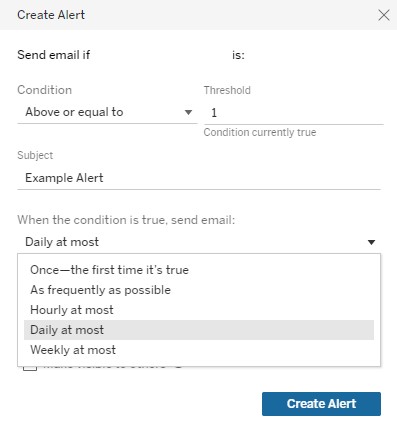
The Requirement
Depending on whether you are using a live connection or a data extract, you get different behaviours from the alert functionality. The expectation of the consumers can be out of line with the behaviour of the alerts as well. For example, consumers might want to see the alert daily, at a specific time or set of times. They might need the alert to check and send early in the morning and late in the evening.
For this post let’s assume that is that ask – for a data-driven alert that can be tuned to some time in the morning and some time in the evening. Of course, this approach can be used for any chosen timeframes.
The Standard Solution
The normal approach to meet this need in Tableau is to set an hourly alert. The issue then is that you might overload the consumer with emails – and and hourly alert that is ignored is about as useful as not having an alert at all.
An alternative is to try and set a daily alert that triggers in the morning, and a separate daily alert that triggers in the evening. That won’t work long term because of how Tableau manages Daily Alerts internally – they are actually checked hourly and are prone to ‘drifting’, so the alert will send at different times throughout the day.
In both cases here, we end up with a solution that is inconsistent or overwhelming, and at the end of the day it is out of line with consumer needs and expectations.
An Alternative Approach
Here’s a trick that works to allow for very flexible, scheduled alerts for a Tableau Dashboard. I will describe the solution that works for the specific use case described above (a morning alert and an evening alert) but this can be generalised to ranges of specific hours, days, weeks, months etc.
Step 1: Use the NOW() function
The NOW() function returns the current date and time as a datetime value.
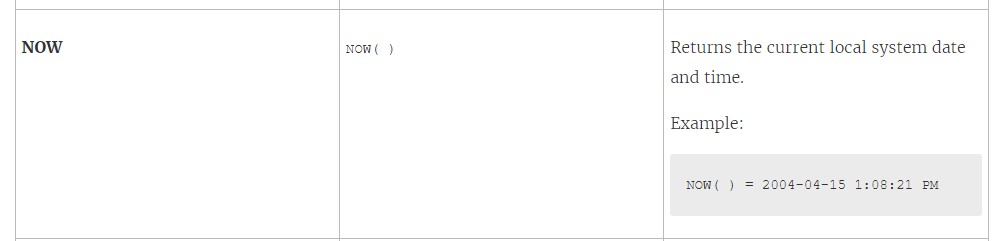
Step 2: Add a calculated field called ‘Hour of Day’, that extracts the hour from the NOW() function.

TRIM(LEFT(RIGHT(STR(DATETRUNC('hour',NOW())),8),2))Step 3: Create a field based on whatever you’re measuring, that includes an IF statement. The IF statement should set the output to NULL outside the timeframe you’re interested in, and set the output to the measure of interest in the timeframe you’re interested in.
For this example want the alert to trigger from 10am-12pm and 3pm-5pm. The measure we’re interested in is called ID.
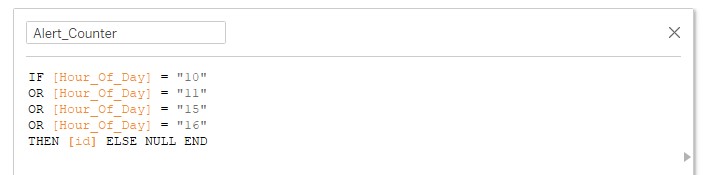
IF [Hour_Of_Day] = "10"
OR [Hour_Of_Day] = "11"
OR [Hour_Of_Day] = "15"
OR [Hour_Of_Day] = "16"
THEN [id] ELSE NULL END
Step 4: Add the counter to the visualisation, publish it, and set up an hourly alert on it.
How does it work?
The IF Statement forces the measure to be NULL for most of the time, and it only populates with a non-NULL value when (a) the time is within the specified range and (b) the thing being counted is present in the data. The hourly alert regularly checks the measure being counted, but the measure is forced to be NULL most of the time. In the specified time range (10am-12pm for our example, the measure can work correctly, and the alert can trigger).
Protips
Be conscious of the timezone of your server! The NOW() function shows the local datetime when you’re using Tableau Desktop, but it switches to the timezone of the server when you publish the Dashboard. It can be helpful to have a view on your Dashboard that displays the value of the NOW() function, to help make sense of this difference.
Be aware of how scheduled extracts line up with your alerts. There is no point in setting alerts at 1pm, 3pm and 5pm every day if your extract only refreshes once a week! Try experiment with setting multiple extracts on a single data source to get the right cadence of extracts for your alerts.

